


How to Join a Romestead Server

Connecting to your private Romestead server is quick and easy. This guide will walk you through how to locate your connection details on your Nodecraft panel and use them to join your game using an IP address or DNS Hostname.
Connect via IP Address or DNS Hostname
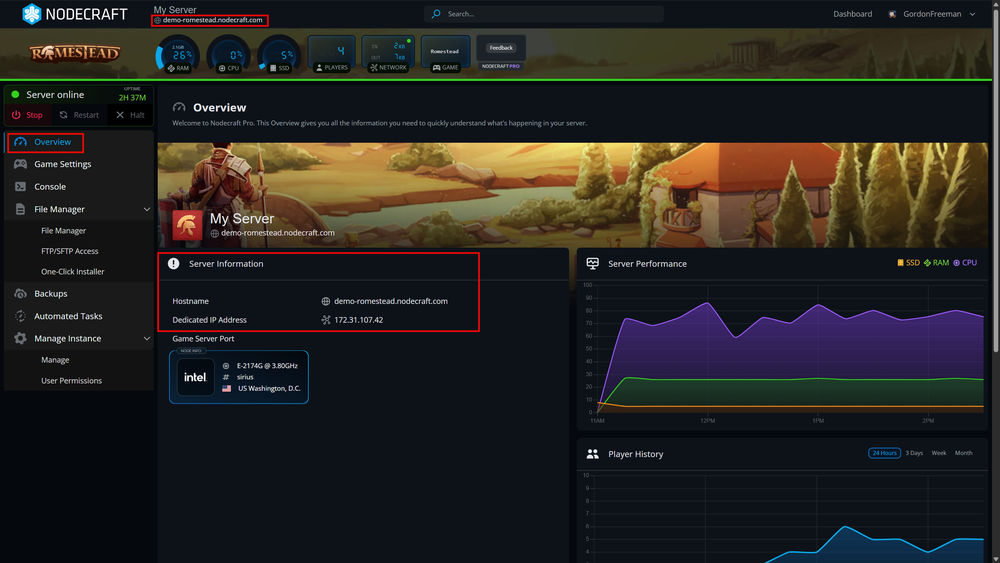
Locate Your Server Information
Log in to your Nodecraft Dashboard.
Navigate to your Romestead server instance.
Open the Romestead Server Control Panel.
In the Overview section, locate the Host Name or Numeric IP within the Server Information block.
Copy either of these addresses to your clipboard.
Connect In-Game
Launch Romestead from your desktop or game launcher.
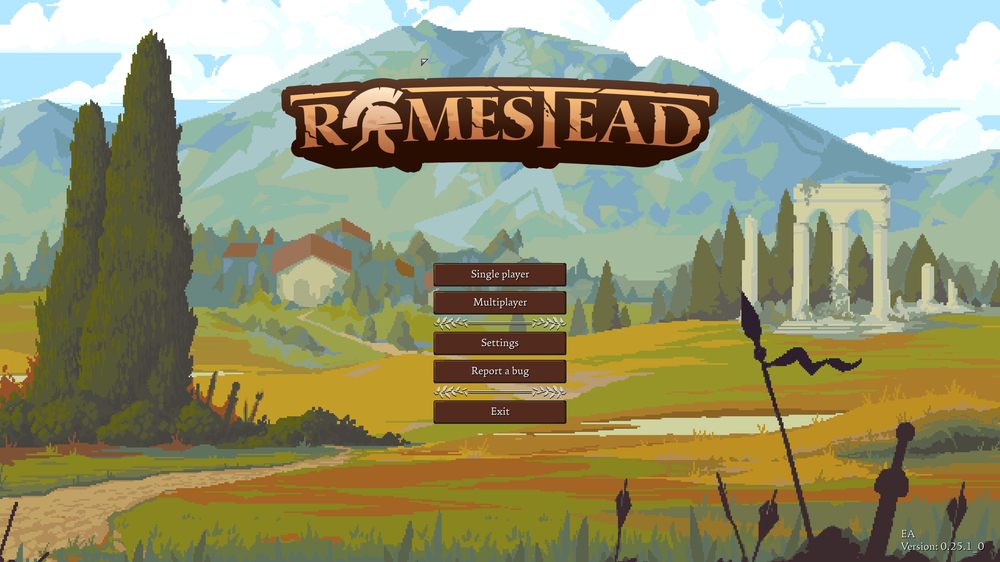
On the main menu, click Multiplayer.
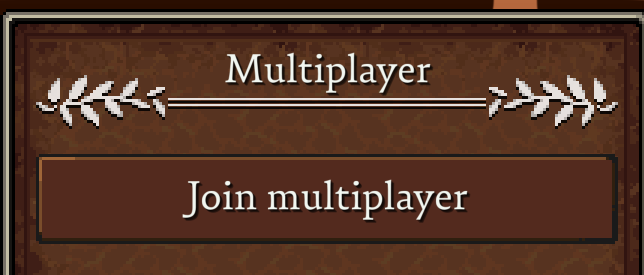
On the next screen, click Join multiplayer.
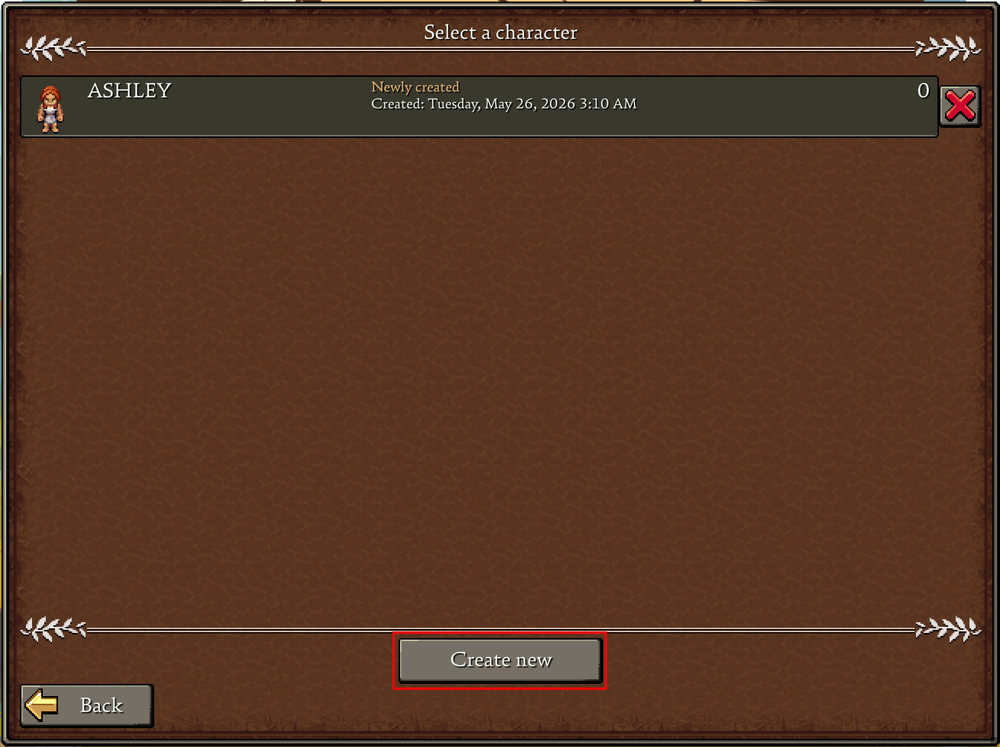
Select your preferred character or click Create New to make a new one.
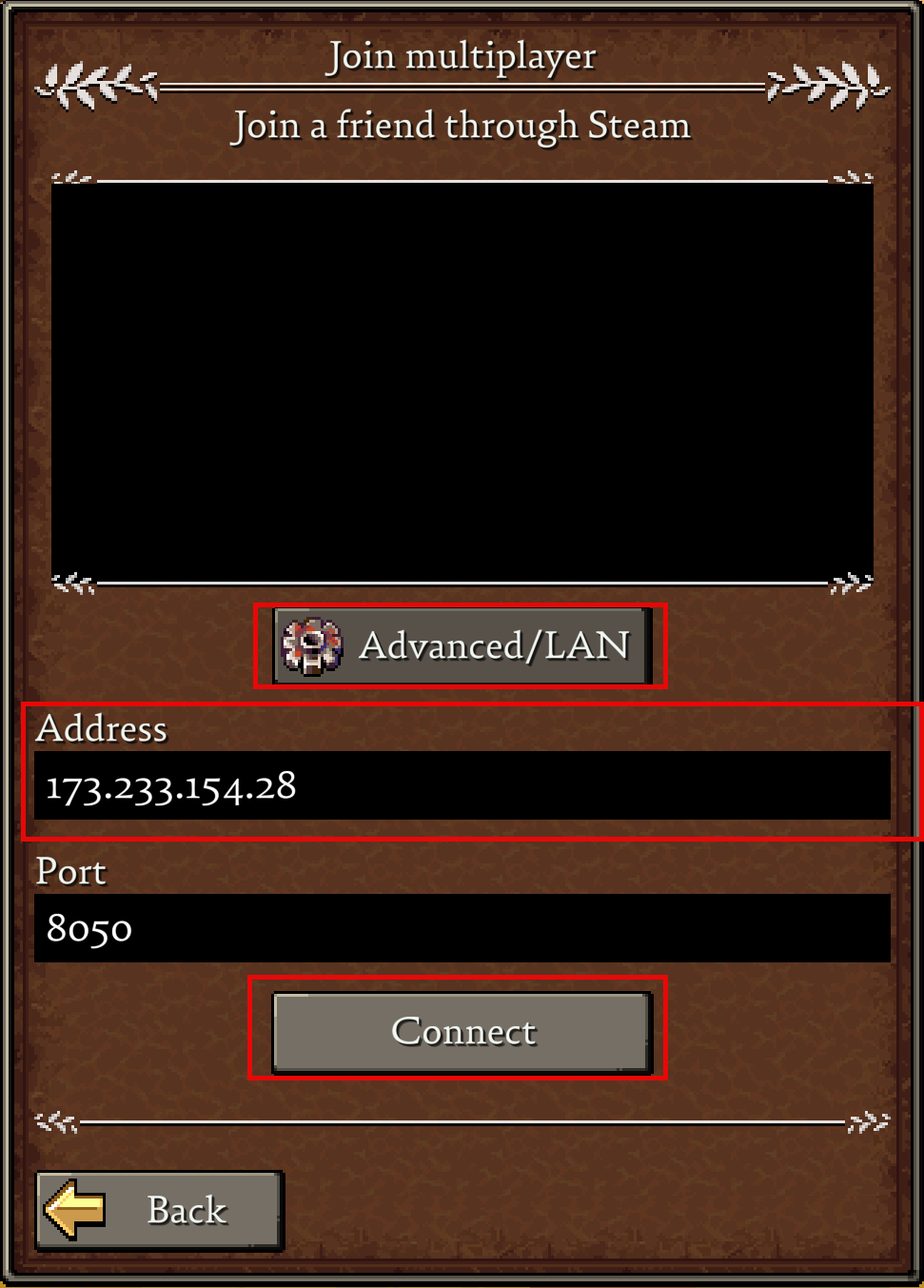
On the Join Multiplayer menu, click the Advanced/LAN button to display the connection fields.
Paste or type your server's IP address (or Hostname) into the Address field, then press Connect.
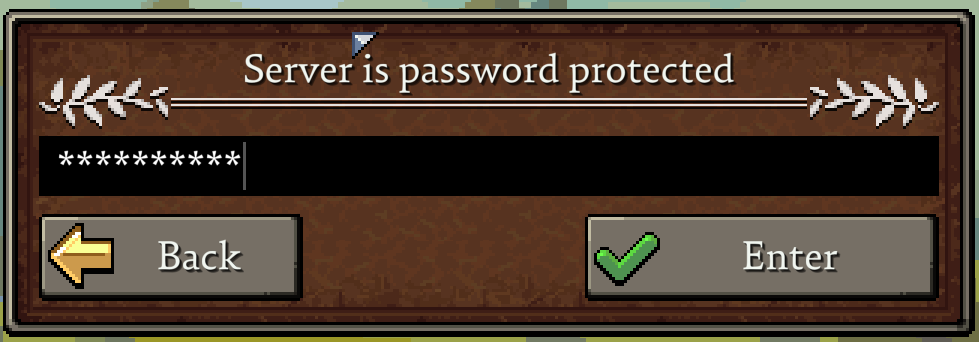
If your server is password protected: Enter the server password when prompted, then press Enter.
Troubleshooting Tips
Can't connect to your server? Try these quick steps before reaching out to support:
Check Server Status: Verify that your server is running. The status indicator on your Nodecraft panel should say "Online" in green.
Verify Password Accuracy: Passwords are case-sensitive. If you changed your password recently in the control panel, make sure to restart the server for the changes to apply.
Conclusion
While there are multiple ways to connect to a multiplayer world, using a direct IP or DNS Hostname via the Nodecraft panel is the most reliable way to ensure you and your friends hit the ground running. Grab your tools, log in, and start building your ultimate homestead!
Need Help?
If you have questions or run into any issues, our support team is here to help! Reach out using the support widget on our website or visit our support center for further assistance.