


How to Become Owner of Your RuneScape: Dragonwilds Server

Giving yourself Owner powers is a simple process for RuneScape: Dragonwilds dedicated servers, and this article will show you how to do that!
RuneScape: Dragonwilds Owner ID
In order for a server to function correctly, RuneScape: Dragonwilds Owner ID must be filled in with a Player ID from in game. To find this ID, follow the following steps:
Open RuneScape: Dragonwilds
Click on Settings
Copy the Player ID shown in the bottom left of this screen.
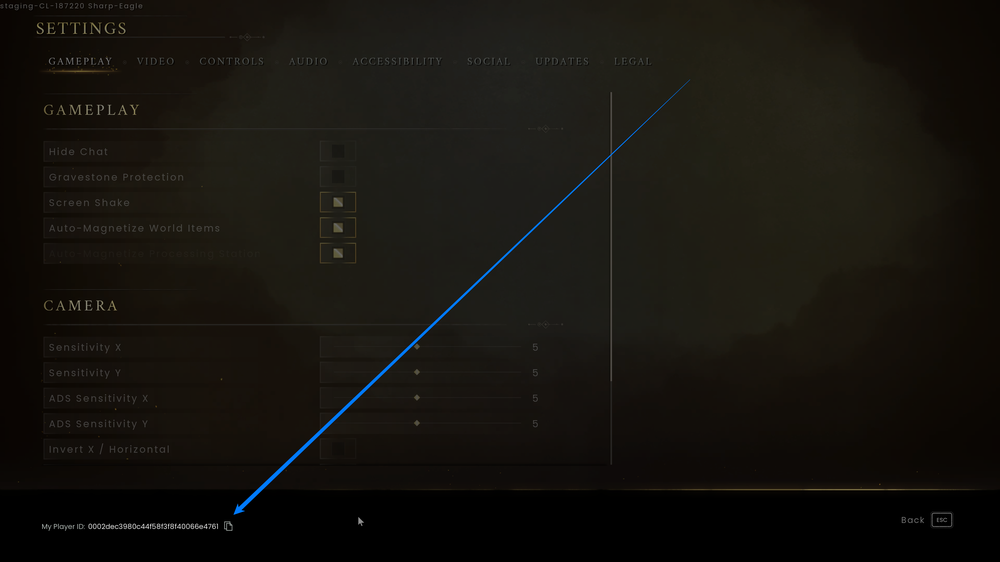
Now that you have copied your Player ID, see the instructions below for pasting this value into the Owner ID field in Dragonwilds server settings.
Nodecraft Server Control Panel
Login to your Nodecraft Dashboard
Click on Panel with the gear icon located in the bottom right of your RuneScape: Dragonwilds server.
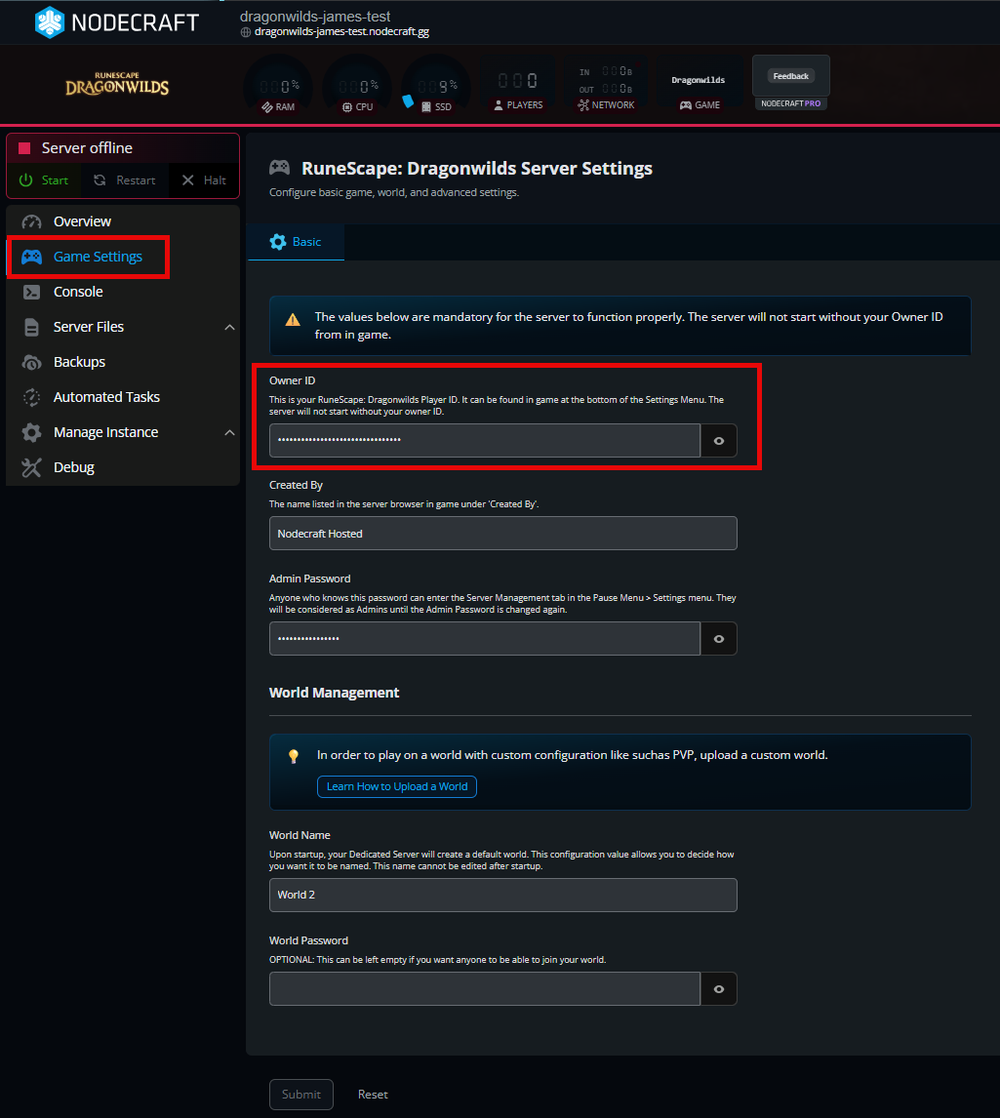
Go to your Game Settings tab on the left-hand side of the control panel.
Navigate to the basic tab.
Paste your Player ID into the Owner ID field.
Just be sure to Save your changes.
Editing Files
If you don't have a server with us at Nodecraft, or just prefer to edit the files directly, this is the section you'll want to look at.
Login to your Nodecraft Dashboard
Click on Panel with the gear icon located in the bottom right of your RuneScape: Dragonwilds server.
Go to File Manager/Files in the left-hand side of the control panel.
Navigate to
/RSDragonwilds/Saved/Config/LinuxServer/DedicatedServer.ini.Paste your Player ID right beside OwnerId=.
Save, and then Start the server.
Conclusion
Claiming ownership of your RuneScape: Dragonwilds server is a vital step in managing your community and ensuring your world runs exactly how you want it. Whether you used the streamlined Nodecraft Control Panel or manually updated your DedicatedServer.ini file, having your Owner ID correctly assigned gives you the administrative authority needed to oversee your server effectively.
With your permissions now active, you’re ready to step into your server as its official owner and begin your journey! Learn more about how to access admin controls in game in our article: How to Set an Admin Password for Your RuneScape: Dragonwilds Server.
Need Help?
If you have questions or run into any issues, our support team is here to help! Reach out using the support widget on our website or visit our support center for further assistance.