


How to Configure your RuneScape: Dragonwilds Server

Setting up your RuneScape: Dragonwilds server is the first step toward building your own custom world. While some configurations are mandatory for the server to launch, others give you the creative freedom to tailor the experience to your community. This guide will walk you through using the Nodecraft Control Panel for quick adjustments, as well as how to manually edit the DedicatedServer.ini file for advanced precision.
Nodecraft Server Control Panel
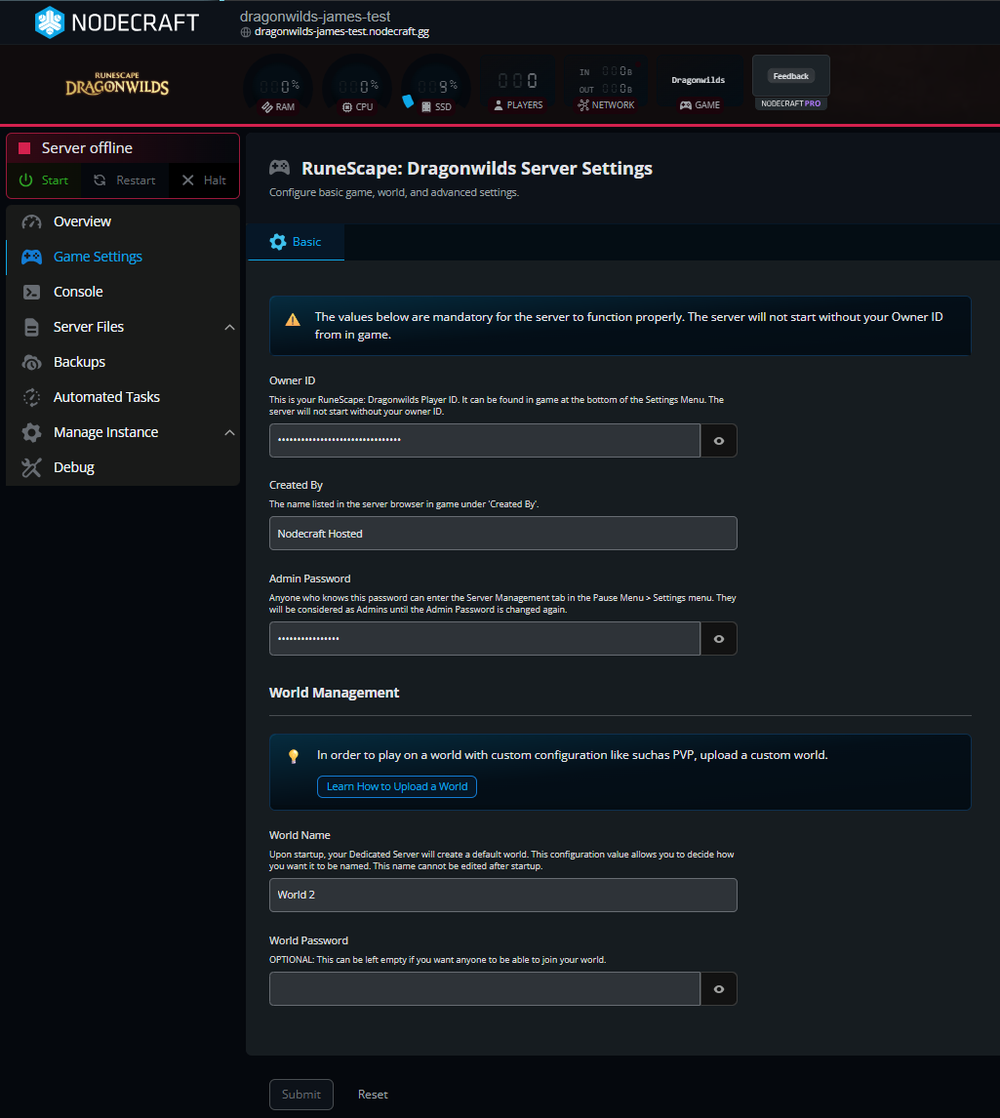
At Nodecraft, we offer a server control panel that allows you to easily change settings without navigating through server files. Click on Game Settings on the left side, then use the tabs near the top to access different options. Just make sure to stop your server before making any changes.
Basic & World Settings
RuneScape: Dragonwilds server config files are very basic, but everything except the World Password is important to set and save prior to starting the server for the first time.
| Setting | Description |
|---|---|
| Owner ID | this is your RuneScape: Dragonwilds Player ID. It can be found in game at the bottom of the Settings Menu. Don't hesitate to use the copy button to add it to your clipboard. The server will not start without your owner ID. |
| World Name | upon startup, your Dedicated Server will create a default world. This configuration value allows you to decide how you want it to be named. This name cannot be edited after startup. |
| World Password | Optional value: can be left empty if you want anyone to be able to join your world |
| Created By aka Server Name | The name of the server no matter what world you may run. We've renamed this to "Created By" to match the way it is shown in game. |
| Admin Password | anyone who knows this password can enter the Server Management tab in the Pause Menu > Settings menu. They will be considered as Admins until the Admin Password is changed again. You can see the list of people who have used the Admin Password to enter the Server Management screen by going to Files > RSDragonwilds > Saved > Config > Linux > DedicatedServer.ini. |
| Max Players | Adjust the amount of players that can join the server at one time. Although we do not recommend going above the default of 6 set by Jagex due to potential performance issues, you are free to adjust at your discretion. |
Editing the File Directly
You can also directly edit the file that manages all of these settings, if you prefer, through the File Manager in the server control panel.
You can find this file following this path: /RSDragonwilds/Saved/Config/LinuxServer/DedicatedServer.ini . Select the file and click the Edit button.
Make any changes you wish, and remember to Save to apply your changes.
Conclusion
Configuring your RuneScape: Dragonwilds server is a straightforward process, whether you prefer the user-friendly interface of the Nodecraft Control Panel or manual adjustments via the DedicatedServer.ini file. By taking a few moments to set up your world settings and passwords before launching, you ensure a smooth and secure gameplay experience for you and your community.
Now that your configuration is complete, you're ready to jump into the action and start your adventure! Read our article How to Join Your RuneScape: Dragonwilds Server next.
Need Help?
If you have questions or run into any issues, our support team is here to help! Reach out using the support widget on our website or visit our support center for further assistance.