


How to Manage the World on my RuneScape: Dragonwilds Server

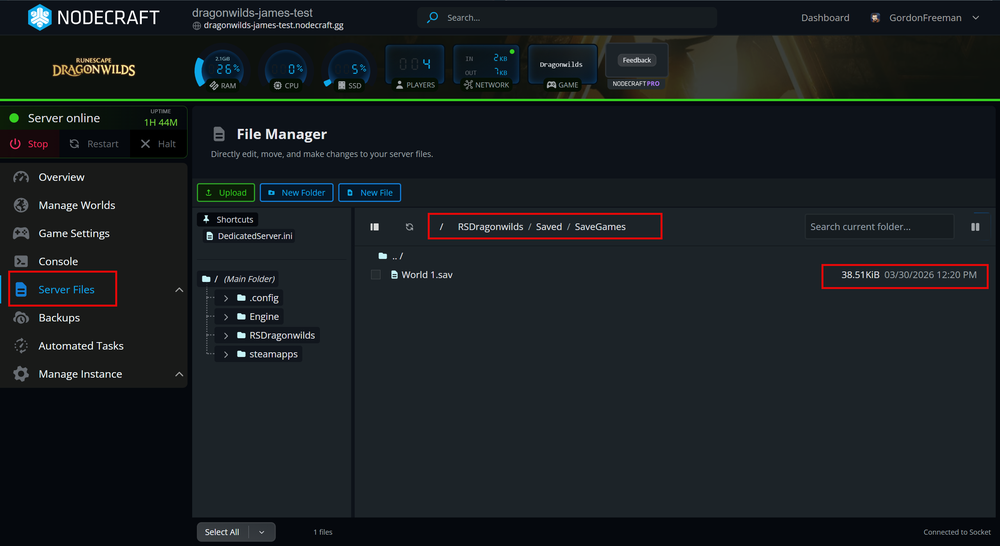
By default, a RuneScape: Dragonwilds dedicated server looks for the most recent .sav file located in the RSDragonwilds/Saved/Savegames directory. If this folder is empty, the server will automatically generate a fresh "Standard" world using default configuration values.
Whether you want to bring your solo progress to your Nodecraft server or start a custom world with unique rules, follow the steps below.
How to Upload an Existing World
If you’ve been playing locally and want to move your progress to your dedicated server, follow these steps:
Stop your Server: Ensure your Nodecraft server is completely powered down before making file changes.
Backup Existing Data: Navigate to
RSDragonwilds/Saved/Savegamesand move any existing files to a backup folder on your local machine.Clear the Save Folder: Ensure the Savegames directory on the server is empty.
Locate Local Saves: On your computer, navigate to:
C:\Users\your_username\AppData\Local\RSDragonwilds\Saved\SaveGames
Note: The AppData folder is typically hidden in Windows. You can enable Show hidden files, folders, and drives by adjusting your File Explorer settings or press Windows + R and paste the following:%localappdata%\RSDragonwilds\Saved\SaveGamesto access the folder directly.Upload to Nodecraft: Use the Nodecraft File Manager (or an FTP client) to upload your local .sav file into the server's
RSDragonwilds/Saved/Savegamesfolder.Start Adventure: Power on your server. Your world is now live!
How to Create a Custom World
To use specific game rules (Creative, Custom, etc.) on your server, it is easiest to generate the world locally first.
Launch the Game: Run RuneScape: Dragonwilds on your PC via Steam.
Generate the World: Create a new world and select your desired settings.
Initialize & Exit: Enter the world briefly to ensure the file generates, then exit the game.
Transfer the File: Repeat the upload process mentioned above, moving the newly created .sav file from your local AppData folder to the server's Savegames directory in the Nodecraft control panel.
Managing and Backing Up Your Saves
We recommend frequently backing up your world files to prevent data loss during game updates or major world changes.
Manual Backups: Simply go to the Backups tab of your Nodecraft Control Panel and click Create Backup
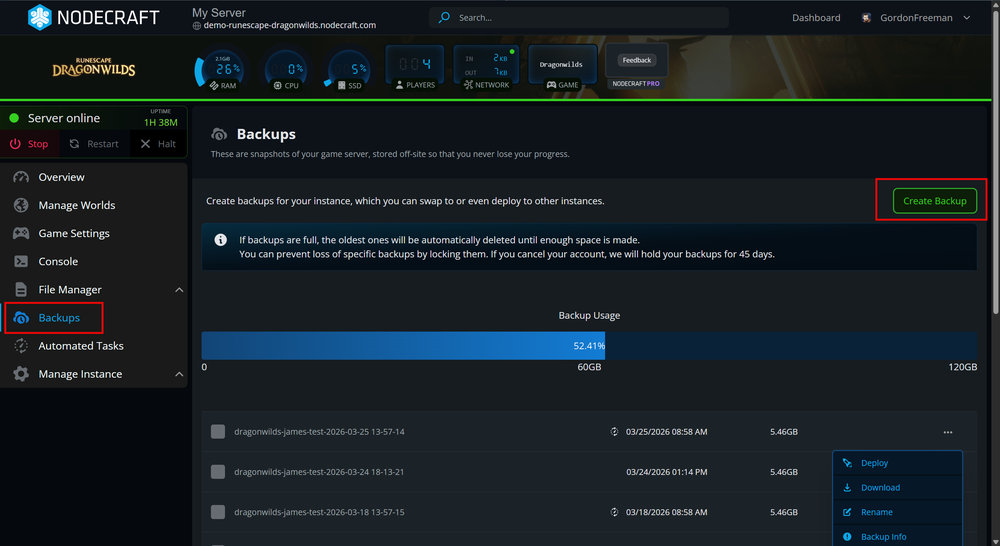
Automated Backups: Nodecraft control panel comes with Automated Tasks, including automated backups. You can adjust the frequency and times of backups in your control panel by following our guide: How to Create and Configure Automated Tasks.
Conclusion
Managing your RuneScape: Dragonwilds world doesn't have to be a grind. Whether you're migrating a long-term solo save to your server or engineering a custom challenge with unique rules, the Nodecraft Control Panel provides the tools to keep your progress safe and your adventure running exactly how you want it.
With your world successfully uploaded and your automated backups in place, you’re all set to focus on what matters most—conquering the wilds!
Need Help?
If you have questions or run into any issues, our support team is here to help! Reach out using the support widget on our website or visit our support center for further assistance.