


How to Change Max Players on an SCP: Secret Laboratory Server

SCP: Secret Laboratory thrives on player interaction. More scientists to rescue, more Class-D personnel causing problems, more guards trying to maintain order, and more SCPs hunting everyone down. Increasing the player limit can make rounds feel more dynamic and create opportunities for larger and more unpredictable encounters throughout the facility.
Note: Your server must be fully stopped before making changes to the player limit.
Open your Dashboard.
Locate your SCP: Secret Laboratory server and click Panel.
Click Game Settings from the left-hand toolbar.
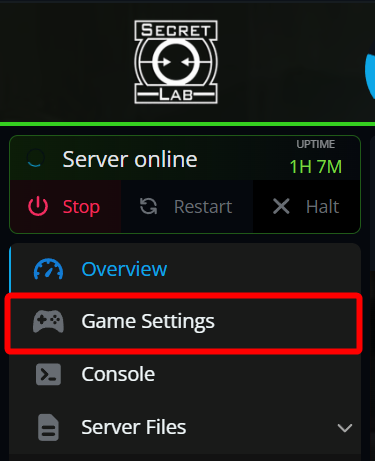
Make sure you are on the Basics tab.
Scroll down until you find the Max Players setting.
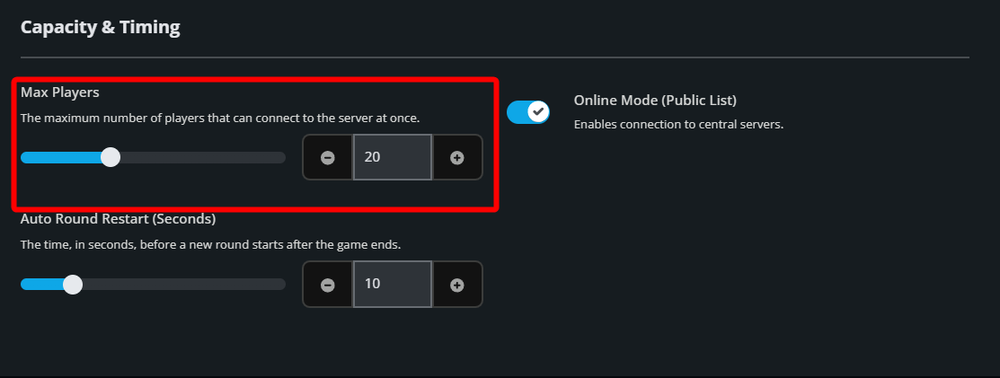
Adjust the player limit using the slider or manually enter a value up to 60 players.
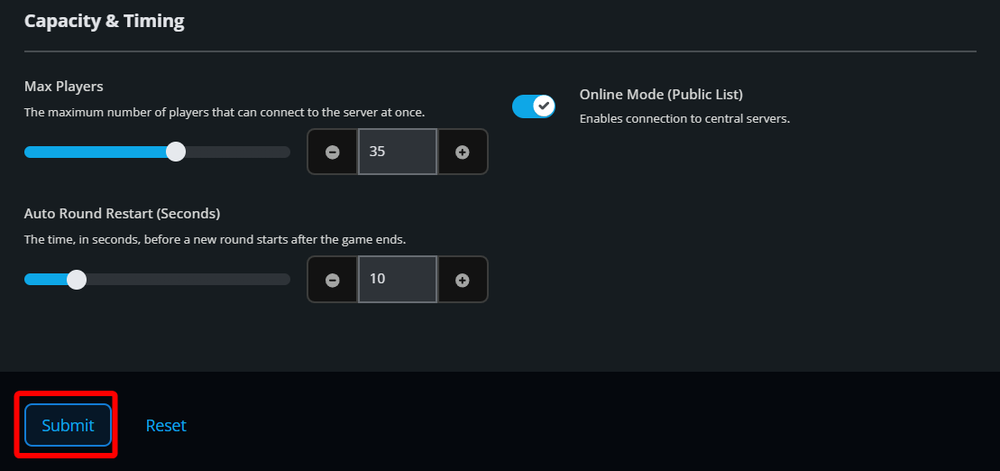
Click Submit to save your changes.
Start your server.
Once the server comes back online, the new player limit will be active.
Conclusion
Your SCP: Secret Laboratory server is now ready to host more players. A larger player count means more rivalries, more alliances, more unexpected betrayals, and a lot more stories coming out of each round. Just remember that the more people you let into the facility, the harder it becomes to predict what is going to happen next.
Need Help?
If you have questions or run into any issues, our support team is here to help! Reach out using the support widget on our website or visit our support center for further assistance.