


How to Enable and Disable Discord Reports for a SCP: Secret Laboratory Server

In this guide we will go over the process of setting up discord reports on your SCP server. Having this setup will forward any reports from your SCP server directly to a discord channel using the discord webhook system.
Open your Dashboard
Locate your SCP server and click on the Panel button.
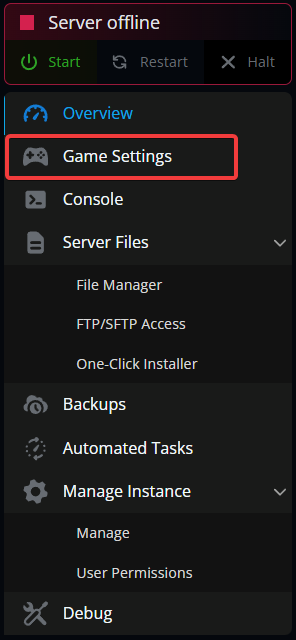
Once on your panel, navigate to your Game Settings.
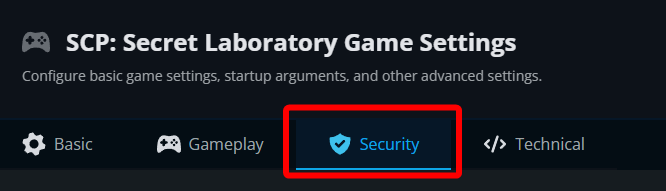
Once on the game settings page, click on the Security tab.
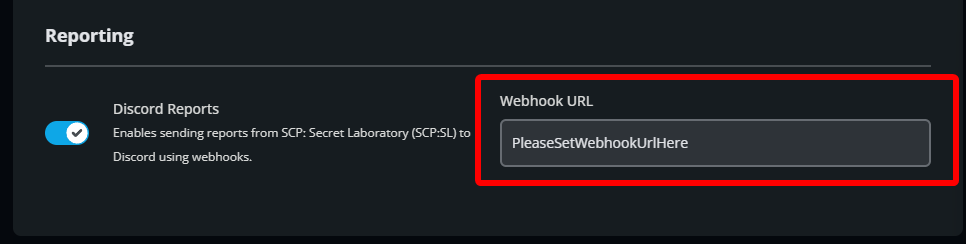
Under Reporting toggle Discord Reports to enable or disable.
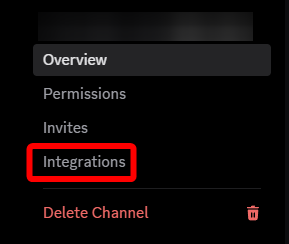
Next you need to create a Webhook URL for your discord channel where you want to send the reports. Open Discord, go to your channel and click on the Gear Icon.
Click on Integrations.
Click on Create Webhook.

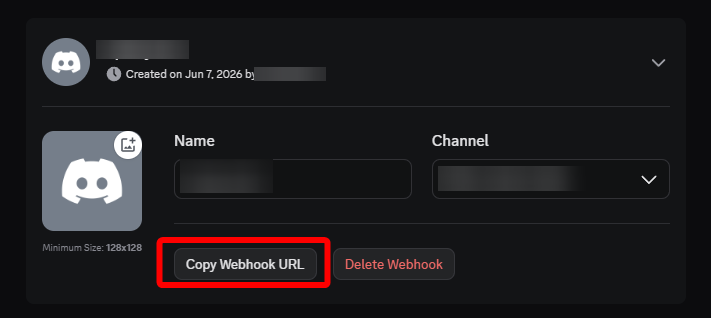
Click on the new webhook to open its settings. You can give it a name then click Copy Webhook URL.
Return to your panel and paste in the URL to the Webhook URL box.
Click on Submit then Start your server.
Conclusion
Discord reporting is now enabled on your server. From this point any time a report is made on your SCP server it will be sent to the discord channel to which now have the webhook setup.
Need Help?
If you have questions or run into any issues, our support team is here to help! Reach out using the support widget on our website or visit our support center for further assistance.