


How to Quickly Find and Join Your Valheim Server

Ready to join your Valheim server? This guide covers connecting on PC, PlayStation 5 (PS5), Nintendo Switch 2, and Xbox using your server details or a crossplay join code.
Enable Crossplay (For Console Users)
Enable crossplay on the server before connecting from a console. If the owner has already enabled it, continue to the joining instructions for your platform.
Navigate to your Nodecraft dashboard.
Locate your Valheim server and click Manage.
Click Game Settings in the menu on the left.
Locate Crossplay and make sure it is enabled.
Save your changes and restart the server.

Find and Share Your Join Code
Note: Join Codes are only used with crossplay. If crossplay is disabled, use the IP address and port for a direct PC connection.
With Crossplay enabled and the server running, open your server's dashboard and find the Join Code card shown below. Use the copy button beside the code and share it with your players. They can enter this code when adding the server in Valheim instead of typing its IP address and port.
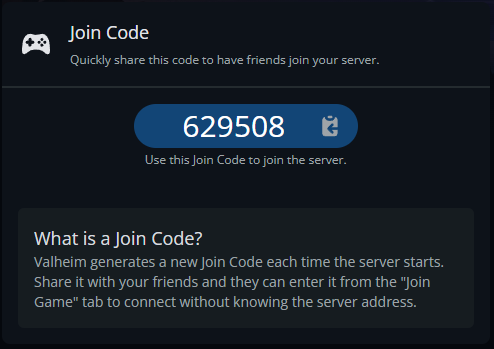
Valheim generates a new Join Code each time the server starts. Share the current code after a restart. Players still need the server password, which you can check in Game Settings.
Join on PlayStation 5 (PS5)
Note: As of Valheim version 1.0, Playstation users must disable the "Playstation Network Only" toggle on the join page in order to see servers with a join code.
Launch Valheim, choose Start Game, and select or create your character.
Open Join Game. Press the touchpad to turn off PlayStation Network Only so crossplay servers can appear.
Choose Add server and enter the current Join Code shared by the server owner.
Select the server, choose Connect, and enter the server password when prompted.
Join on Nintendo Switch 2
Launch Valheim, choose Start Game, and select or create your character.
Open Join Game and select Add server.
Enter the current Join Code shared by the server owner.
Select the server, choose Connect, and enter its password when prompted.
Join on Xbox
Launch Valheim, choose Start Game, and select or create your character.
Open Join Game, select Add server, and enter the current join code.
Select the server, choose Connect, and enter its password when prompted.
Crossplay must be allowed on both the server and your Xbox account. If the option is unavailable, check the account's privacy or parental controls.
Join on PC
Launch Valheim, choose Start Game, and select or create your character.
Open Join Game and choose Add server.
Enter the current Join Code or use the server's IP address and game port in IP:PORT format, then add the server.
Select the saved server, choose Connect, and enter its password.
Find Your Server in the Community List
In Join Game, open Community and search for the server name. Refresh if it has just started, then select it and connect. Use a distinctive Server Name in Game Settings to make it easier to find. A join code or direct address can help when the listing is slow to update.
Final Thoughts
Keep your server details handy so your next session starts with your friends instead of a search through the server list. A join code makes crossplay straightforward, while PC players can also save the server address for later.
Need Help?
If you have questions or run into any issues, our support team is here to help! Reach out using the support widget on our website or visit our support center for further assistance.