


Windrose World Manager Overview

The World Manager on your Windrose server gives you an easy way to view, switch, and manage the worlds tied to your server. Whether you’re uploading a new world, changing which one is active, or organizing multiple saves, this tool helps keep everything in one place and easier to work with. In this guide, we’ll give you an overview of the World Manager on your Windrose server.
Getting to the World Manager
Navigate to your Nodecraft Dashboard.
Click the Panel button for your Minecraft server.
Locate and click Game Settings in the menu on the left side.
Click on the Worlds tab.
Note: Be sure that your Windrose server is fully stopped before making any configuration changes or setting updates!
Main Screen
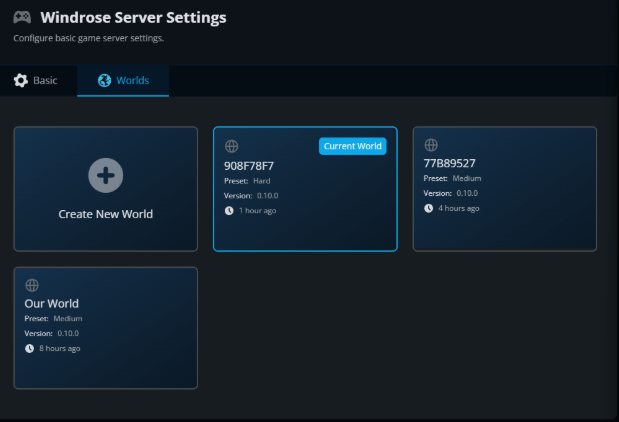
The main menu of the World Manager shows a list of the worlds currently on your server, as well as allowing you to create new ones. The currently selected world is highlighted in blue.
Creating a New World
Clicking Create New World will open this menu:
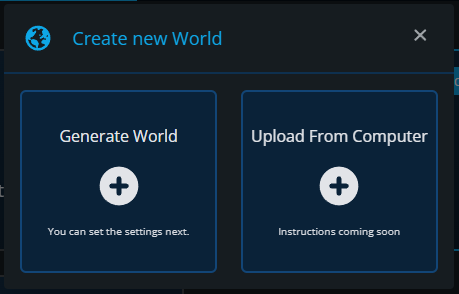
Generate World will create a new, randomly named, world on your server. Once the world has been created, the Edit World menu will open.
Upload World will redirect you to the File Manager where a world can be uploaded. Check out our guide on uploading a world here:
Editing World Settings
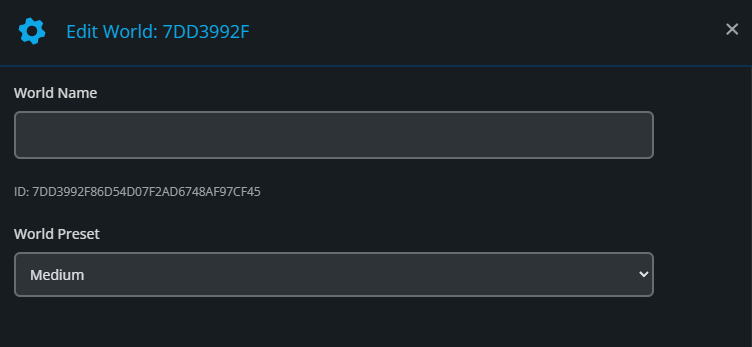
At the top of the Edit World menu, there is a World Name box to enter an optional name for your world. This will help you in knowing which world is which. This name is not shown in-game.
Below is the World Preset box. Here you can choose from Easy, Medium, Hard, or Custom difficulties. You can find more information on setting your world’s difficulty here:
Selecting a World
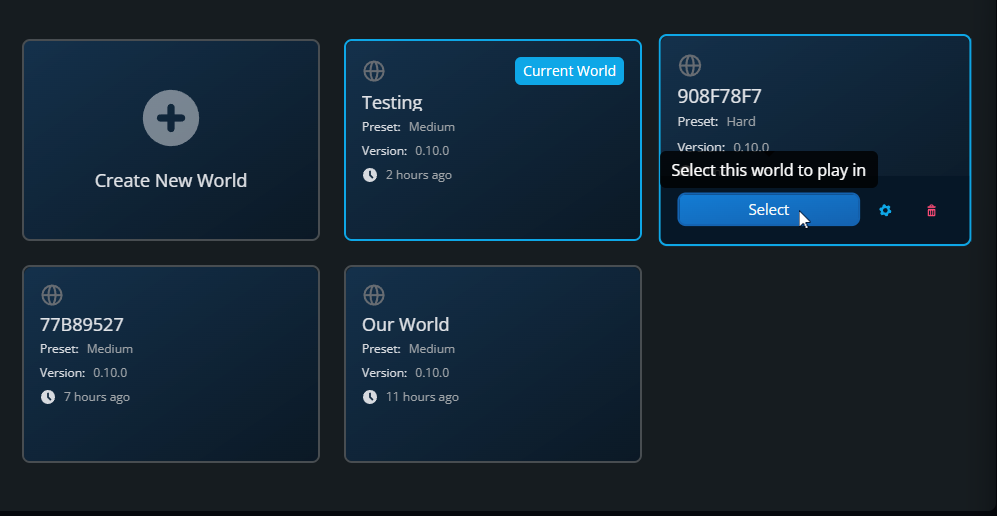
To select a different world to play, mouse over it and click the Select button.
Conclusion
The World Manager makes it easier to keep track of the worlds connected to your Windrose server and switch between them when needed. Whether you’re uploading a new save, changing your active world, or just reviewing what’s already there, this tool helps keep world management simple and organized.
Need Help?
If you have questions or run into any issues, our support team is here to help! Reach out using the support widget on our website or visit our support center for further assistance.