


How to Add and Remove Mods from a VoidsWrath Modpack

Modpacks are built to deliver a specific experience, but sometimes that experience needs a little adjustment. Maybe a mod causes issues, impacts performance, or you simply want to add something new to your world. The VoidsWrath launcher makes it possible to edit an existing modpack by directly managing the mod files inside it. This allows you to remove mods you no longer want or add new ones that match your Minecraft and Forge versions.
In this guide, we’ll walk through how to open your modpack’s mods folder in the VoidsWrath launcher and safely add or remove mods.
In this guide we will cover how you can either remove or add a mod to a modpack that is already installed on the Voidswrath launcher.
Removing a Mod
Open the VoidsWrath Launcher.
Once opened, find and select the modpack you want to remove a mod from in this example, ScrambleCraft2.
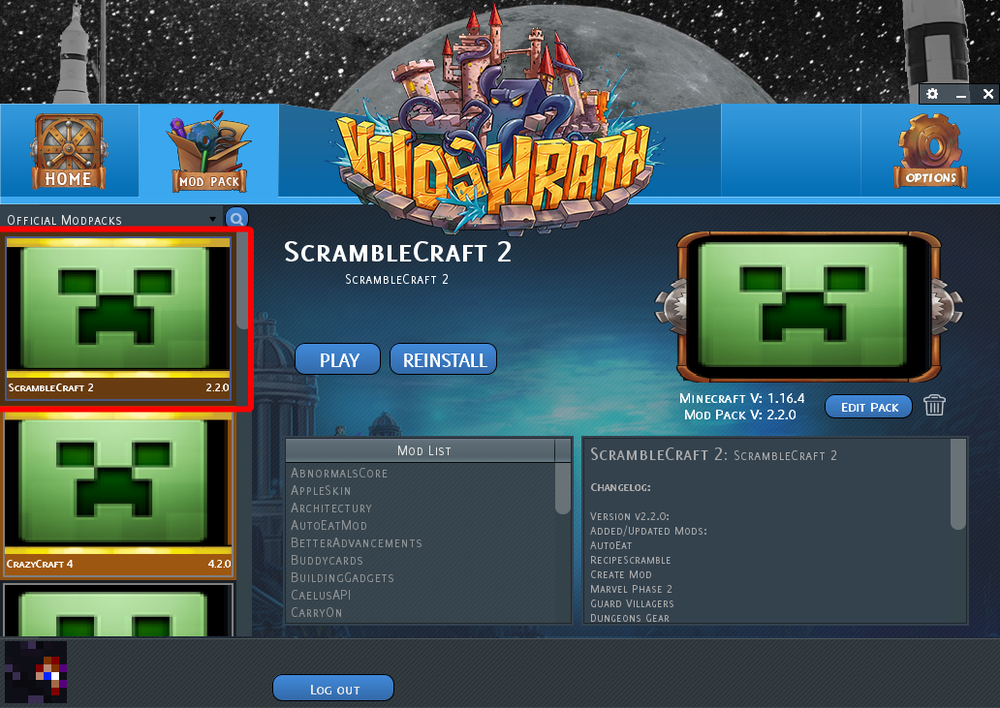
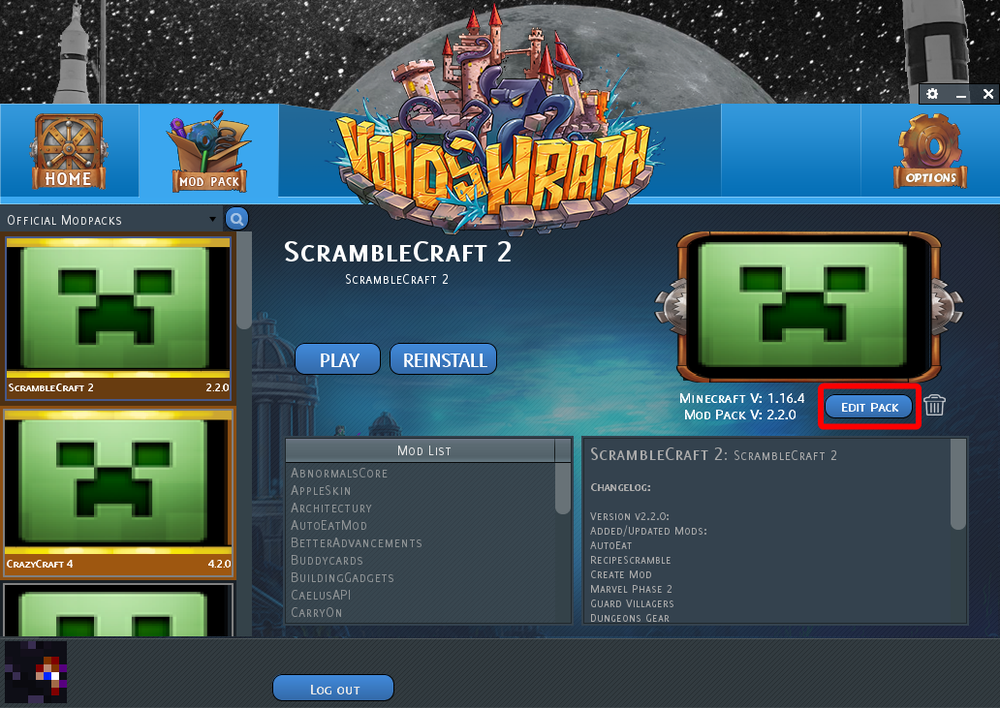
Click on the Edit Pack button.
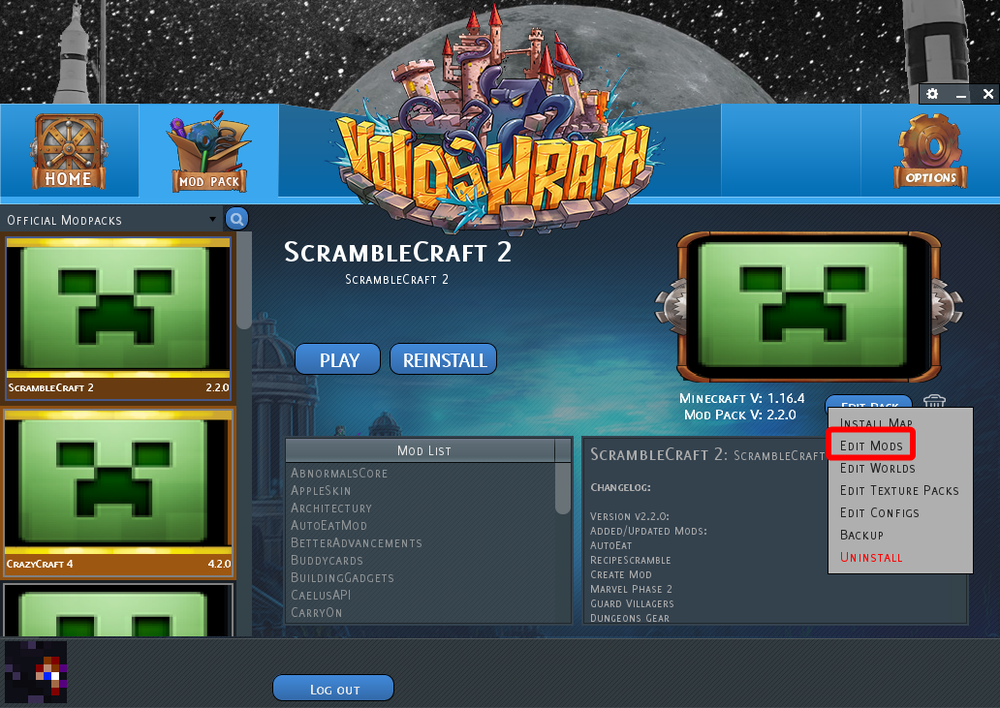
Select Edit Mods.
Upon selecting Edit mods you should be given a new explorer window where you see all the mod files currently installed.
Find the file of the mod you’d like to remove, in my example Optifine, then just delete the file.
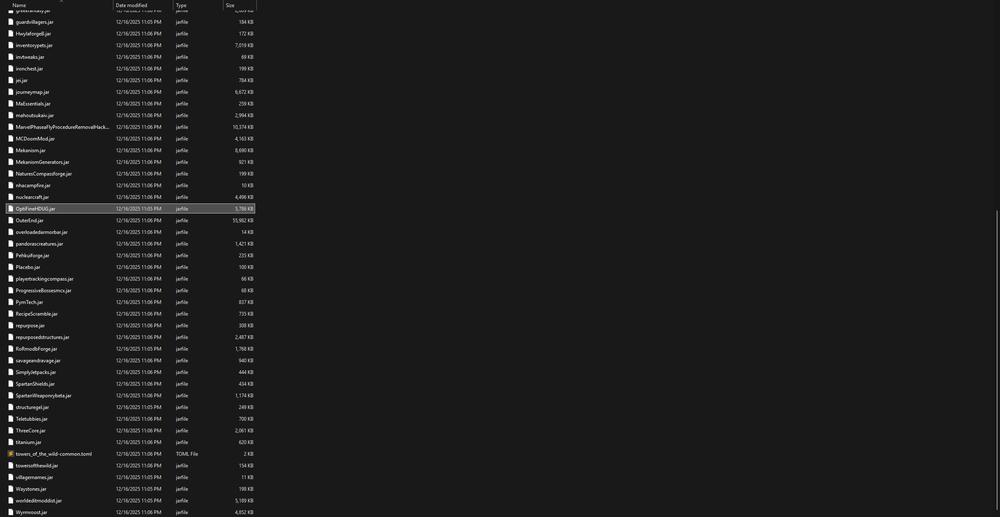
You have now removed a mod from your modpack on the Voidswrath launcher.
Adding a Mod
Open the VoidsWrath Launcher.
Once opened, find and select the modpack you want to remove a mod from in this example, ScrambleCraft2.
Click on the Edit Pack button.
Select Edit Mods.
Upon selecting Edit mods you should be given a new explorer window where you see all the files.
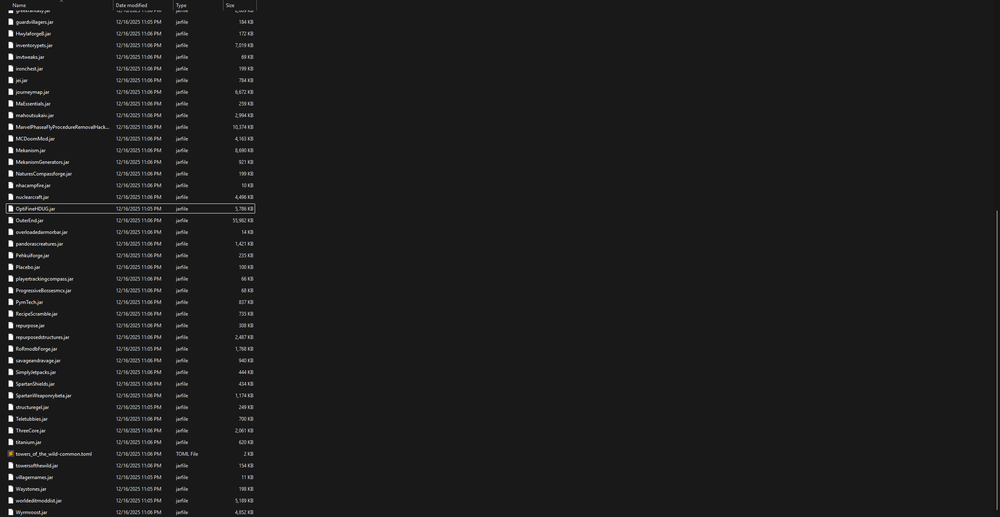
Now that you have the window with all your currently installed mods you will be able to add a mod by either dragging and dropping it into the folder or copy and pasting the file. When you do this, you need to ensure that you have a mod that is for the same version of forge and minecraft that you are playing on.
Conclusion
That’s all there is to editing mods in a VoidsWrath modpack. By accessing the Edit Mods folder, you can quickly remove mods that aren’t working for you or introduce new ones to shape your gameplay experience.
Just remember that mod compatibility matters!
Need Help?
If you have questions or run into any issues, our support team is here to help! Reach out using the support widget on our website or visit our support center for further assistance.