


How to Find Client Logs on Modded Minecraft Launchers

When you’re playing modded Minecraft, things can break in ways vanilla never dreamed of. Crashes, missing textures, random disconnects, “it worked yesterday” errors… it happens.
When troubleshooting modded Minecraft, the client log is one of the most important files you can provide. This log shows what happened on your computer while launching or playing the game.
Below, we’ll walk you through how to find client logs on the most common modded Minecraft launchers.
Why Client Logs Matter
Before we jump into locations, here’s what client logs help with:
Identifying missing mods or mismatched versions
Diagnosing crash causes
Detecting Java errors
Spotting mod conflicts
Confirming connection attempts to your server
CurseForge Launcher
Open the CurseForge launcher.
Click Minecraft on the left side, if it’s not already selected.
Right-click on your modpack and select Open Folder.

Open the /logs folder and locate latest.log.
If your game fully crashed, go back, then open the /crash-reports folder and locate the most recent file.
ATLauncher
Open the ATLauncher.
Click Instances on the right side.
Find your modpack in the list and click Open Folder.

Open the /logs folder and locate latest.log.
If your game fully crashed, go back, then open the /crash-reports folder and locate the most recent file.
Prism Launcher
Open the Prism Launcher.
Right-click on your modpack and click Folder.

Open the /logs folder and locate latest.log.
If your game fully crashed, go back, then open the /crash-reports folder and locate the most recent file.
Technic Launcher
Open the Technic Launcher.
Click Modpacks at the top.
Click on your modpack, then click Modpack Options in the top right.
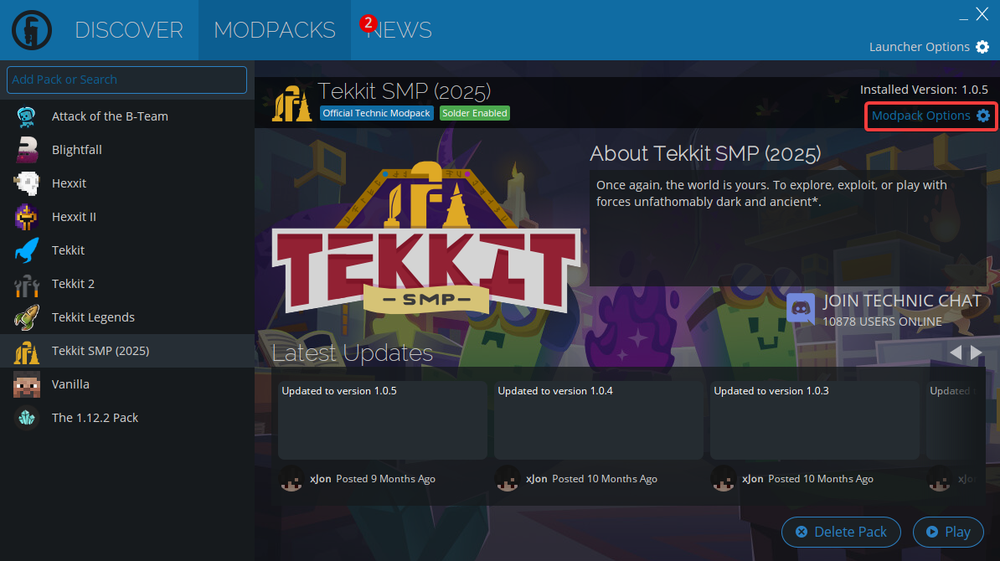
Next to Install Folder, click Open.

Open the /logs folder and locate latest.log.
If your game fully crashed, go back, then open the /crash-reports folder and locate the most recent file.
Vanilla Launcher
Windows
Press Windows + R
Type %appdata%
Open .minecraft
Open the /logs folder and locate latest.log.
If your game fully crashed, go back, then open the /crash-reports folder and locate the most recent file.
macOS
Finder → Go → Go to Folder
Enter ~/Library/Application Support/minecraft
Open the /logs folder and locate latest.log.
If your game fully crashed, go back, then open the /crash-reports folder and locate the most recent file.
Linux
Go to ~/.minecraft
Open the /logs folder and locate latest.log.
If your game fully crashed, go back, then open the /crash-reports folder and locate the most recent file.
Which Log Should You Send?
In most cases:
Send latest.log if the game launches but has issues.
Send the newest file inside crash-reports if the game crashes.
If requested, include debug.log for deeper troubleshooting.
Avoid copying the text directly into chat if it’s long. Upload the file to a paste service or attach it directly.
Conclusion
When modded Minecraft refuses to cooperate, the answer is almost always hiding in the logs. It may look like a wall of text at first, but that file tells the full story of what your game tried to do and where it failed.
Finding your latest.log or crash report only takes a minute, and it can save hours of guesswork. Instead of chasing random fixes, you can identify the exact mod, version mismatch, or Java error causing the issue.
If you’re reaching out for help, sending your client log upfront makes troubleshooting faster, cleaner, and far less frustrating. Grab the file, share it, and let the logs do the talking so you can get back to playing.
Need Help?
If you have questions or run into any issues, our support team is here to help! Reach out using the support widget on our website or visit our support center for further assistance.