


How to Remove a Mod From a Modpack

Mods are what turn a modpack into your modpack, but sometimes one just does not belong. Maybe it changes gameplay in ways you did not expect, causes crashes, or simply is not something you want anymore.
This guide walks through how to remove a mod from a modpack on your Minecraft server using the File Manager. Because removing mods can affect world data, it is strongly recommended to create a backup before making changes. In some cases, removing a mod may require generating a new world or could impact existing saves.
Removing A Mod
Open your Dashboard.
Locate your Minecraft server and click on the Panel button.
Once on your Minecraft server panel, stop then server then click on the File Manager tab.
Once on the file manager, navigate to the Mods folder.

Locate the mod you want to delete, check the box and then click Delete.
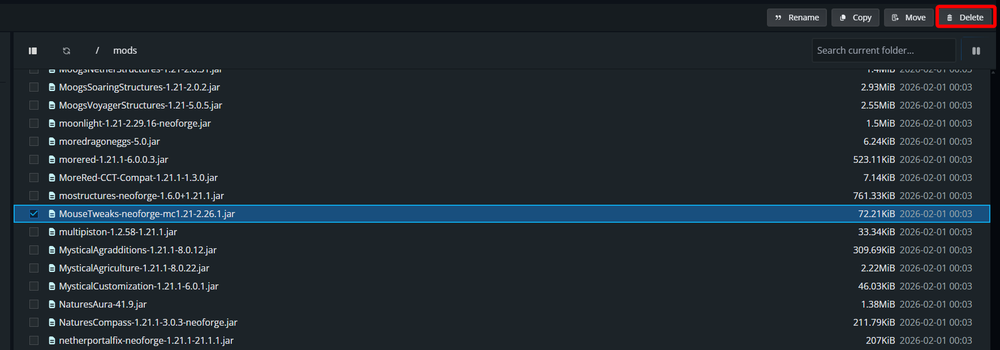
Note: While not always necessary, you may need to also remove the deleted mod from your client as well or you may encounter gameplay issues.
Once the mod is deleted you can Start your server.
Conclusion
Removing a mod is mostly about cleaning up the correct file and making sure the server starts without it. After deletion, watch your console for errors and verify that the world loads as expected. If you run into missing blocks, crashes, or strange behavior, the removed mod may have stored world data that can no longer load.
When in doubt, restore your backup, double check dependencies, and remove the mod from your client as well to avoid version mismatches.
Need Help?
If you have questions or run into any issues, our support team is here to help! Reach out using the support widget on our website or visit our support center for further assistance.